Assign iOS app licenses
- To assign an app license using a policy:
- Go to Policies in top navigation.
- Click an individual policy to open it, then click the Edit icon.
- Choose Apps in the left-hand navigation.
- Select an app whose license you want to add to the device, then click Link to Policy.
For more information about policies, see Using policies to manage device configurations.
- To assign an app license to a device:
- Select the Devices tab in top navigation.
- Select a device.
- In the right panel, select Apps.
- Click Add New.
- Select an app from the library, import from store, or upload from your machine.
- Click Install on Device.
When you attempt to install a paid VPP app to a device, a message appears, requesting you to either Assign to User or Assign to Device.

Assigning to a user: Assigning a license to a user means that one license is issued to that user. This means that if a user has three devices, all of that user’s devices can use the app and only one license is used. To do that, the administrators must add the user to the VPP, and then send an invitation to the user.
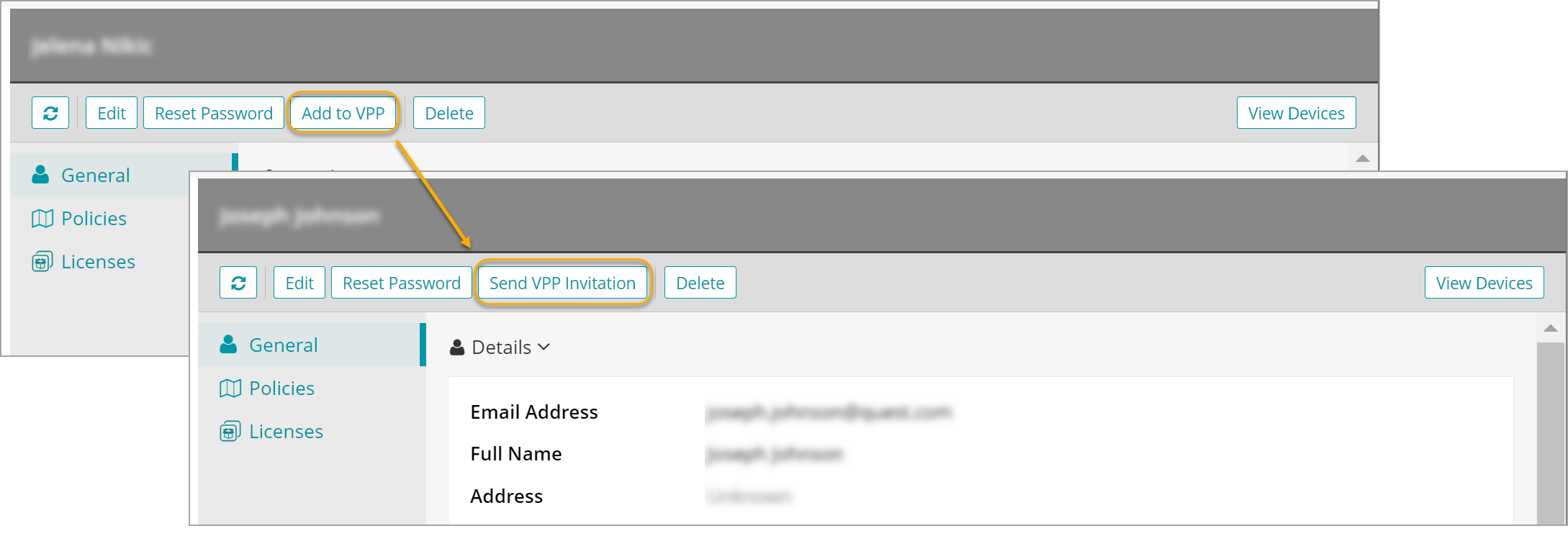
An email is sent to the user, and notifications appear on the associated iOS devices. The user must then accept the EULA to get the app. Once the user is successfully added to the VPP, the VPP Status field changes to Associated.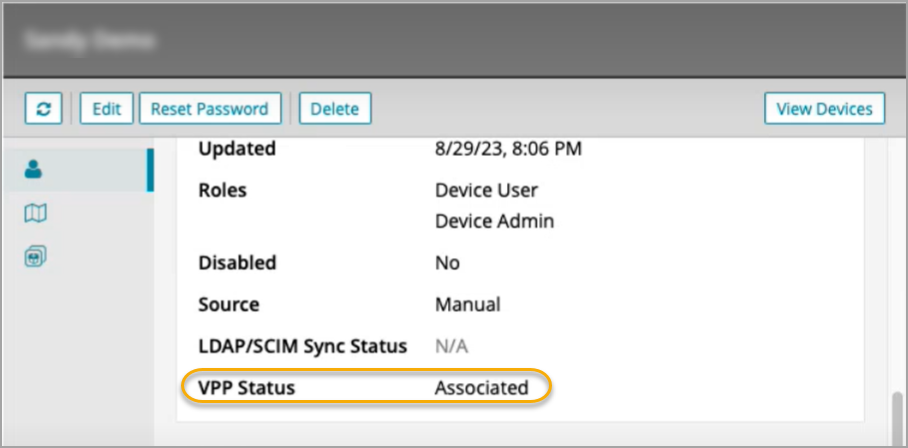
The list of licensed apps in the user view shows the apps assigned to the user account. The same list appears when the user logs in to the app store. When the app is uninstalled, the company reclaims that license.